.png)
🚨(internal only) What to do when you get a duplicate Google Business Profile Error Code
How to Handle a Duplicate Google Business Profile Error (Step-by-Step)
Hey team! 👋
I’m going to walk you through exactly what to do when we hit a duplicate Google Business Profile error during an integration.
Take a deep breath — you’ve got this. Let’s go. 🚀 Here is the LOOM
🧠 What’s Going On (Quick Context)
Sometimes our software tries to integrate with a Google Business Profile (GBP)… but Google says 🚫 “Nope — this is a duplicate.”
What that usually means:
- We have access to a secondary (duplicate) profile ❌
- We do not yet have access to the primary, verified profile ✅
Our goal is to:
- Get access to the correct (primary) profile
- Point the account to the right Profile ID
- Remove ourselves from the duplicate profile (kindly + correctly)
- Reconnect the integration 🎉
✅ Step 1: Identify the Duplicate Profile
1️⃣ Go into Church Fuels Google Business Manager.
2️⃣ Click Businesses on the left hand side toolbar
3️⃣ Click into Duplicate.
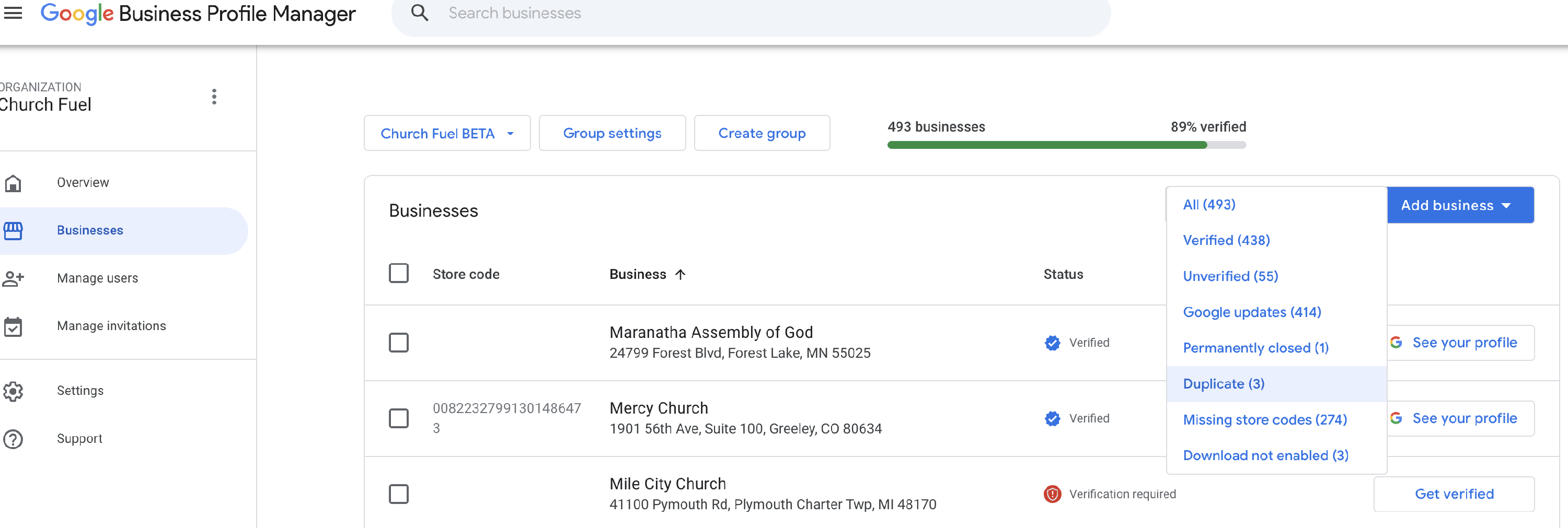
🔑 If the we haven't requested access to the primary Google Business Profile yet, follow this step. Once it's approved, come back here and move onto Step 2 :)
4️⃣ Loom on how to do that:
5️⃣ When the pop-up appears:
- You’ll see your name
- You’ll see the phone number 📞
- You’ll see a role dropdown
6️⃣ In the dropdown:
- Select Owner (not Primary Owner)
- Choose Nerds at Church Fuel as the owner to be approved
*Send an email to the customer with the attached screenshot! Here is the saved reply - "Duplicate Google Business Profile - Main Profile Requested"
🎉 Step 2: Confirm Access to BOTH Profiles
7️⃣ If we have access to both open up both profiles in separate tabs
🧹 Step 4: Clean Up the Account-Level Profile ID
Right now, the account may still be pointing to the duplicate profile, which is why the integration failed.
8️⃣ Go to the account level and open Advanced Settings.
🔍 Look for the Google Business Profile ID.
- The duplicate profile ID will usually end in something different (in my case, it ended in 9-1).
🔁 Now:
9️⃣Go the correct profile in Google Business Manager.
🔟 the three dots → Business Profile Settings → Advanced Settings.
1️⃣1️⃣Copy the correct Business Profile ID.
1️⃣2️⃣ Go back to the account level:
- Paste the correct Profile ID
- Save your changes 💾
✔️ The name may look exactly the same — that’s okay! ✔️ What matters is that the Profile ID is now correct.
🔍 Step 5: Double-Check Before Removing Anything
🚨 Pause here. Double-check EVERYTHING.
1️⃣4️⃣ Confirm:
- This profile = verified ✅
- This profile = correct ✅
⚠️ DO NOT remove us from this one.
1️⃣5️⃣ Identify the duplicate profile instead.
📸 Take a screenshot of the duplicate profile for the customer.
📩 Send them:
- The screenshot
- A Help Scout article explaining how they can remove the duplicate if they want
👉 If they don’t remove it? That’s okay. We already have what we need.
🫶 Step 6: Remove Ourselves from the Duplicate (With Kindness)
1️⃣6️⃣ Open the duplicate profile.
1️⃣7️⃣ Go to Google Business Profile Settings.
1️⃣8️⃣ Select Churchfield Beta.
1️⃣9️⃣ Remove us from the duplicate profile.
💡 Important kindness rule:
- If Google ever lets you into a profile that the customer does not have access to, add a customer email first.
- Never leave them locked out.
We’re here to help, not hold things hostage. ❤️
🔌 Step 7: Reconnect the Integration
2️⃣0️⃣ Go back to the integration screen.
2️⃣1️⃣ Select the dropdown → choose Churchfield Beta.
2️⃣2️⃣ Type the business name and let it load.
2️⃣3️⃣ Click Connect.
⏳ If it spins… don’t panic.
✨ Pro tip from Ryan: Refresh is your best friend.
2️⃣4️⃣ Refresh the page 🔄
2️⃣5️⃣ Come back and check the status.
🎉 If it’s connected — YOU DID IT!
🥳 Final Result
✅ Correct profile connected ✅ Duplicate no longer causing issues ✅ Integration successful
YAY TEAM!!! 🙌🔥
If you get stuck at any point, drop it in Basecamp and we’ll tackle it together. You’re doing amazing work. 💛