
Goodstack Verification: Emails, Proving You Work at Your Church, and Rejected Applications
Goodstack (formerly called Percent) is the verification partner Google uses to confirm that churches and nonprofits are eligible for Google for Nonprofits, and that the person applying really works or volunteers at the church. This guide covers the emails Goodstack may send you, what to do if they can't verify you, and how to find a missing support ticket.
Goodstack sent you a verification email
As part of your application, Goodstack automatically looks on your church's website for a staff or leadership email address and sends a verification email to it. This confirms that the person applying is connected to the church, which protects your church and keeps the process legitimate.
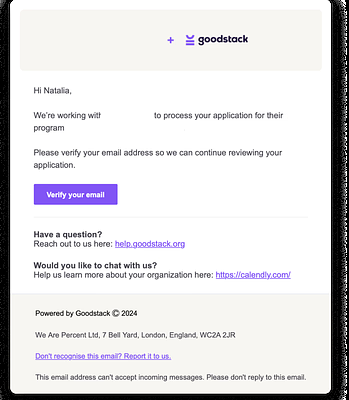
The email comes from Goodstack and mentions your nonprofit application. Here's an example (your church's name and details will appear in the real email):
- Check your main inbox first.
- If it's not there within a few minutes, check spam, junk, or promotions. Spam filters often catch this email because it comes from an outside service.
- Still can't find it? Search your inbox for "Goodstack."
- Open the email and click the purple Verify your email button.
Warning: If this email isn't found and verified, your application will be rejected. This step can't be skipped. Once you click Verify your email, you're done with this step and your application will keep moving.
Tip: Because Goodstack may email any address on your website, let your staff know you're applying and remove old or unchecked email addresses from your site.
Goodstack asks you to prove you work or volunteer at your church
While applying, you may see a screen like this asking you to upload documents showing you work or volunteer at your church:

This is a safety measure so a stranger can't apply on your church's behalf and get access to things meant only for your church, like Google Workspace email and the Google Ad Grant. When you see this screen, upload one or more of the documents listed.
Here's what worked for one church:
"I submitted a copy of the articles of incorporation and a copy of a letter I had received from the state certifying that a Certificate of Formation had been filed. I received an email from Google the next day saying our church was verified and eligible for Google for Nonprofits."
Goodstack says "we're not able to verify that you are associated with" your church
Don't despair! You can ask Goodstack to review your rejected application. Go to Goodstack's review request page. You can chat with them using the bubble in the bottom right corner, or fill out the form:
- In "Please choose your issue below," select I'd like my rejected application to be reviewed.
- Enter the email address you were logged in with when you applied for Google for Nonprofits.
- Select your rejection reason. Check your rejection email so you pick the right one.
- Enter your first and last name.
- In "Nonprofit Name," type your church's legal name exactly as it appears on the paperwork you submitted, even if your church goes by a different name now.
- "Nonprofit Registration Number or Tax ID" is optional, but filling it in can speed things up. In the US, if your paperwork lists your church's federal EIN, enter that. Otherwise, your paperwork may list a state ID number. If you're not sure, leave it blank.
- Select your country and enter your church's website.
- In "Partner name," select Google.
- In "Description," write something like: "Hello! I received a message that you were unable to confirm my association with [church name]. What do you need from me to fix this?"
- Attach your church's articles of incorporation or another official government document for your church. If you don't have one, you can attach a voided church deposit slip (black out any sensitive information first) or a contract showing you work for the church.
- Click Submit.
Keep an eye on your spam folder, because Goodstack's messages often end up there.
Goodstack says to reply to your "original ticket," but you can't find it
After you ask Goodstack to review your application, you might get a message from do-not-reply@goodstack.org saying something like "It's been a while since we heard back from you" or "You can still respond to the original support ticket." If you can't find that original ticket, you're not alone. Goodstack emails can be notoriously hard to find. Here's what to try:
- Search for emails from verifications@mail.goodstack.org. Search "All Mail," and check spam and junk too, since "All Mail" doesn't always include them. These emails may have a button to upload documents. Open each one and complete any tasks they ask for.
- Search for emails from hello@goodstack.org in All Mail and spam. This is usually the original support ticket. It will likely ask you to reply and attach documents you've already uploaded. Reply and attach them anyway, or Goodstack can't move forward with your review.
The original ticket often asks for something like this:
"Please kindly provide your EIN Verification Letter, or at least one document from either the organization-issued or bank-issued document list (providing one from each list will speed up the process). Just so you know, we can only accept original PDF documents. Additionally, all documents must show your organization's legal name."
Unless Goodstack says otherwise, you don't need to send everything on their list. Send your EIN verification letter plus at least one item from the list. See Goodstack's list of accepted documents.
Afterward, Goodstack may send another no-reply email saying your church has been put in a special queue for faster processing and asking you to re-apply for Google for Nonprofits using a specific email address. Watch every folder (including spam and promotions) for this email, read it carefully, and follow its instructions.
Need help?
You've got this, and we can help! Join a Live Support call (Tuesday, Wednesday, and Thursday at noon CT / 1 PM ET) or reach us at churchfuel.com/support.